
Step 12: Creating a Superannuation Fund
 This is an optional step at this stage of the company creation process. You can choose to complete this step at a later stage by opening the Superfunds node.
In this step of the Company Creation Wizard you create the Superannuation Funds for this company.
When you create a new superannuation fund, two linked pay items are automatically created in the background, which are used for employer contributions. Pay items relating to employee contributions such as salary sacrifice, can be added manually as required.
Several superannuation reports have been included to help you manage your super contributions. Bank account details can be included for each fund if you wish to make payments electronically. You can also define various earnings thresholds which govern the employer's obligation to make superannuation contributions on behalf of employees.
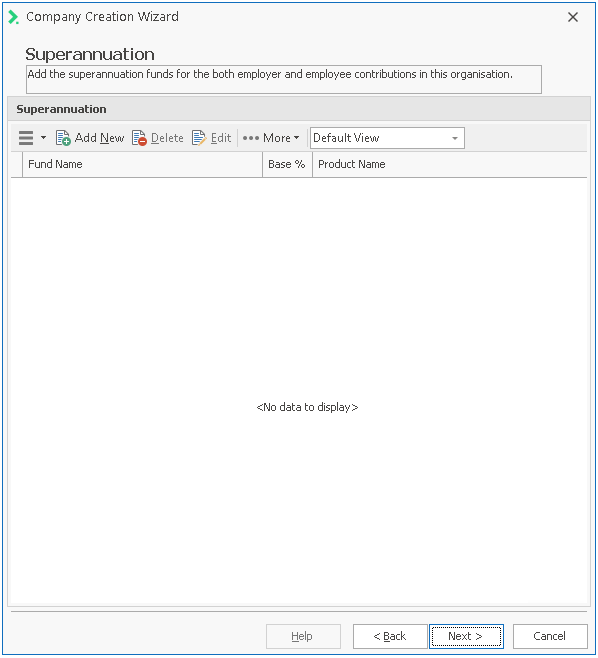
To Create a New Super Fund at This Point:
- Click on the Add New button.
The Super Funds Details screen will open. - The following information must be completed.
| Field | Explanation |
|---|---|
| Details | |
| Name | Enter the name of the superfund. |
| ClickSuper Product Search | This option will be available if you have previously registered for the ClickSuper service. See ClickSuper Product Search for information. |
| Product Name | Some Super Funds have different super products within their fund. |
| Plan Id | Enter the Plan ID as supplied by the fund. |
| Percentage Base | If you defined a SGC base contribution at step 6, it will be inserted here by default. You can override it if required. |
| Accounts Payable Ref | This field can store an accounts payable reference to identify accounts payable for a super fund. |
| ABN | Enter the Superannuation fund's ABN. If you use ClickSuper Product Search, this field will auto populate. |
| Spin | Enter the Superannuation fund's USI or SPIN . If you use ClickSuper Product Search, this field will auto populate. |
| Exclude from ClickSuper | Check this box if you do not want this Super Fund to be included in the ClickSuper upload process. |
| Employer/Contributor ID |
This is the identifier for the employer, as registered with ClickSuper. It is mandatory if you have a Multiple Employer Facility, but optional if you have a Single Employer Facility. |
| Self Managed Fund (SMSF) | Tick this box if the fund you are adding is an SMSF. |
| Electronic Service Address | Enter your Electronic Service Address (ESA ). Only required for SMSF's . If you use ClickSuper Clearing house enter CLICKSUPER as the ESA if you do not know the ESA. |
| Minimum Thresholds | If you entered a minimum monthly threshold at step 6, it will be inserted here by default. |
| Override Monthly Threshold | Tick the override box if you wish to override the value. |
| Threshold Amount | Enter an alternative threshold amount. |
| Minimum Eligibility Criteria- Employees Under 18 Years | |
| Full Time Part Time Casual |
You must pay super guarantee on payments you make to an employee under 18 years old if they work for you for more than 30 hours in a week, regardless of how much you pay them. As minimum enter 30 hours per week in the Casual field. |
| Minimum Eligibility Criteria- Employees Under 18 Years | Employees under 18 year of age may have to complete a certain number of hours before they are eligible for super (in addition to meeting the minimum monthly threshold). To restrict employees under 18, enter the minimum hours value here. An example might be casual employees under 18 years of age, who work less than 30 hours per week. In this case, you would enter 30 in the casual field. The system automatically monitors age and employment status on the employee's characteristics tab. |
| Account Details - Only required for SMSF's | |
| Bank State Branch | Enter the BSB of the bank account from which the contribution should be paid. If you have entered a valid BSB, the bank and branch will display, otherwise click Unknown to create a BSB. |
| Account Name | Enter the account name from which the contribution should be paid. |
| Account No. | Enter the account number from which the contribution should be paid. |
| Lodgement Ref | Enter a lodgement reference that will appear on the destination account to identify the payment. |
Once you have completed all the required information, click OK then Next.